Data Without Context Is Just Numbers
A social media analytics dashboard is only useful if you know what to look for. Post Later's analytics are designed to surface actionable insights, not just raw data. Understanding the structure of the dashboard will help you get far more value from it.
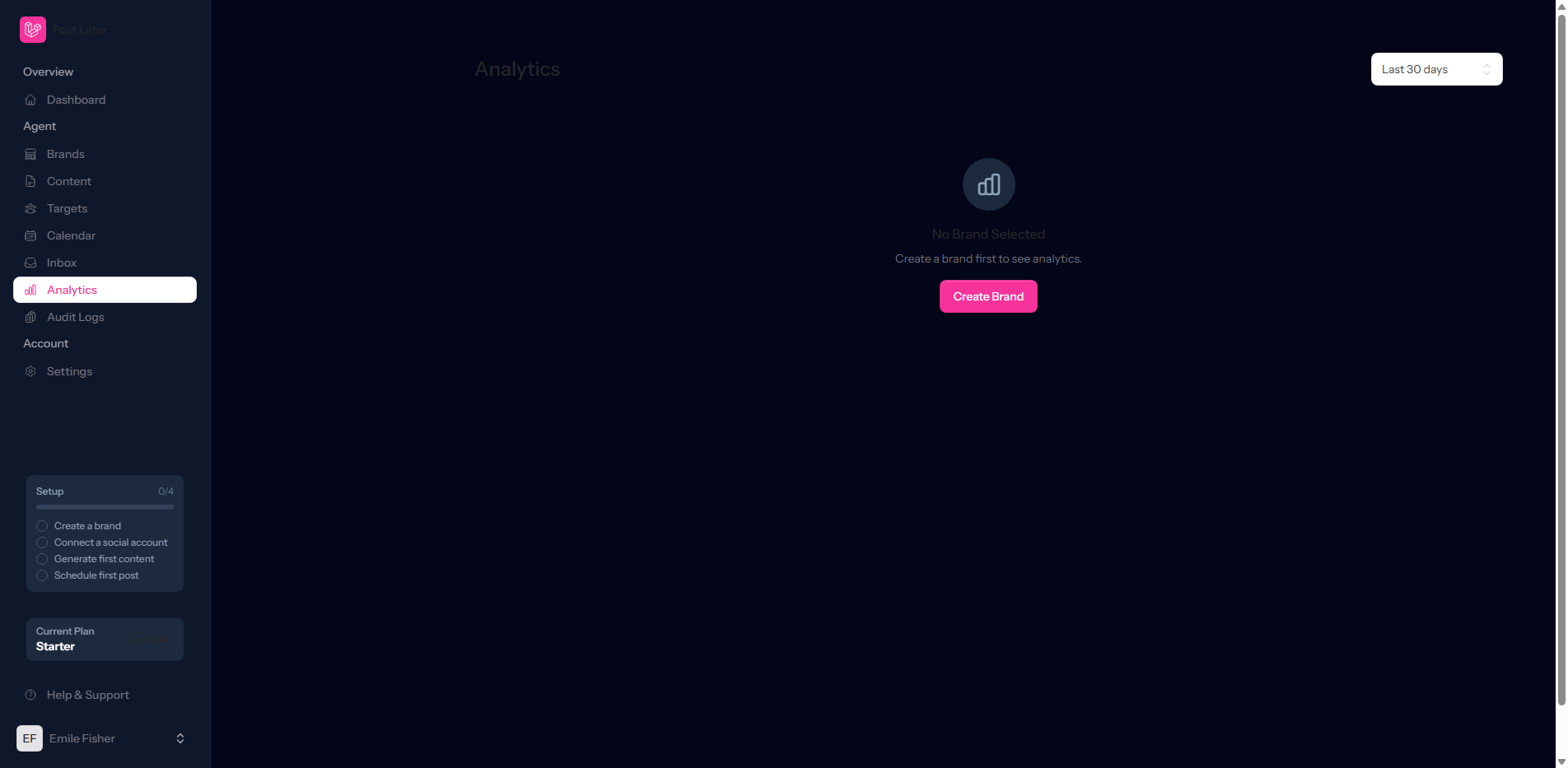
The Overview Panel
When you open Post Later Analytics, the first thing you'll see is the Overview panel. This gives you a 30-day snapshot across all connected platforms for your selected brand:
- Total Reach: The number of unique accounts that saw at least one of your posts
- Total Impressions: The total number of times your content was displayed, including multiple views from the same account
- Engagement Rate: Your average engagement rate, calculated as (likes + comments + shares) divided by reach
- Follower Growth: Net new followers gained across all platforms
Use the date range selector to compare performance periods. For example, compare this month versus last month to identify trends.
Per-Platform Breakdown
Below the overview, Post Later breaks performance down by platform. This view is essential for understanding where your effort is paying off. If Instagram is driving 80% of your reach but only 20% of your follower growth, that's a signal worth investigating.
Top Performing Posts
The Top Performing Posts section ranks your published content by engagement rate for the selected period. This is one of the most actionable sections of the dashboard. The content that appears here tells you exactly what your audience responds to.
Look for patterns. Do videos consistently outperform images? Do posts with questions in the caption drive more comments? Let the data shape your next content calendar.
Best Times to Post
Based on your historical engagement data, Post Later calculates the times of day and days of the week when your audience is most active and most likely to engage. These recommendations update automatically as your data grows, becoming more accurate over time.
You can apply these recommendations directly when scheduling a new post. Click Use recommended time in the post composer and Post Later will select the optimal slot automatically.