Your Content Operation at a Glance
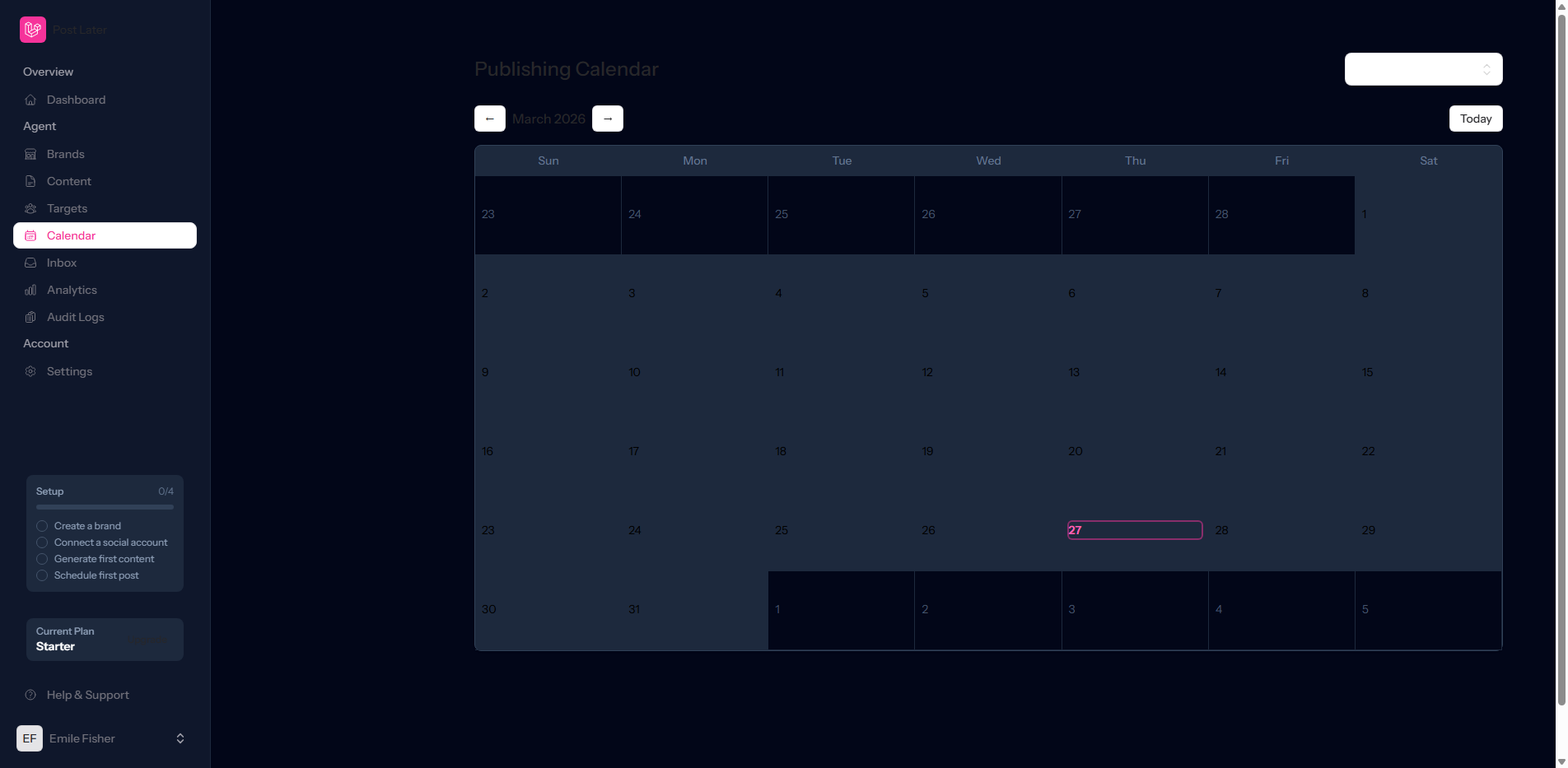
The publishing calendar is the operational heart of Post Later. Every scheduled post across all your connected platforms is visible here, colour-coded by platform and brand. You can switch between day, week, and month views depending on how far ahead you're planning.
Navigating the Calendar Views
Post Later's calendar offers three distinct views, each suited to different planning contexts:
- Day View: Shows every post scheduled for a single day, organised by time. Ideal for reviewing your publishing schedule before the day starts or making last-minute edits.
- Week View: The most commonly used view. Shows all posts for the current week across all platforms side by side, making it easy to spot gaps in your schedule.
- Month View: The strategic overview. Use this to ensure your content mix is balanced, your campaign timing is spaced correctly, and you have adequate coverage across the full month.
Drag-and-Drop Rescheduling
Rescheduling in Post Later requires zero forms or menus. In week and month view, simply drag any post card to a new date or time slot and drop it. The post is rescheduled instantly. This makes it trivially easy to adapt your schedule when breaking news, product changes, or client feedback requires a pivot.
Post Statuses at a Glance
Each post in the calendar displays its status with a clear visual indicator:
- Scheduled: Approved and queued for automatic publishing
- Draft: Created but not yet approved for scheduling
- Published: Successfully delivered to the platform
- Failed: A publishing error occurred. Click to see details and retry.
Filtering for Focus
On busy accounts, the calendar can display a high volume of posts. Use the filter bar at the top of the calendar to narrow your view by platform, brand, or post status.
This is particularly useful for agencies managing multiple brands who want to focus on a single client's schedule without distraction. The publishing calendar is live and reflects changes in real time. If a colleague edits a post while you're viewing the calendar, the update appears automatically.